Dowload
Desktop Software

- Windows
Download the AiColor Cloud software for Windows from the link below:
Download for Windows - macOS
Coming soon.
Setup steps:
- After you install the camera, you need can login the account. This account is same when m you register on the phone app
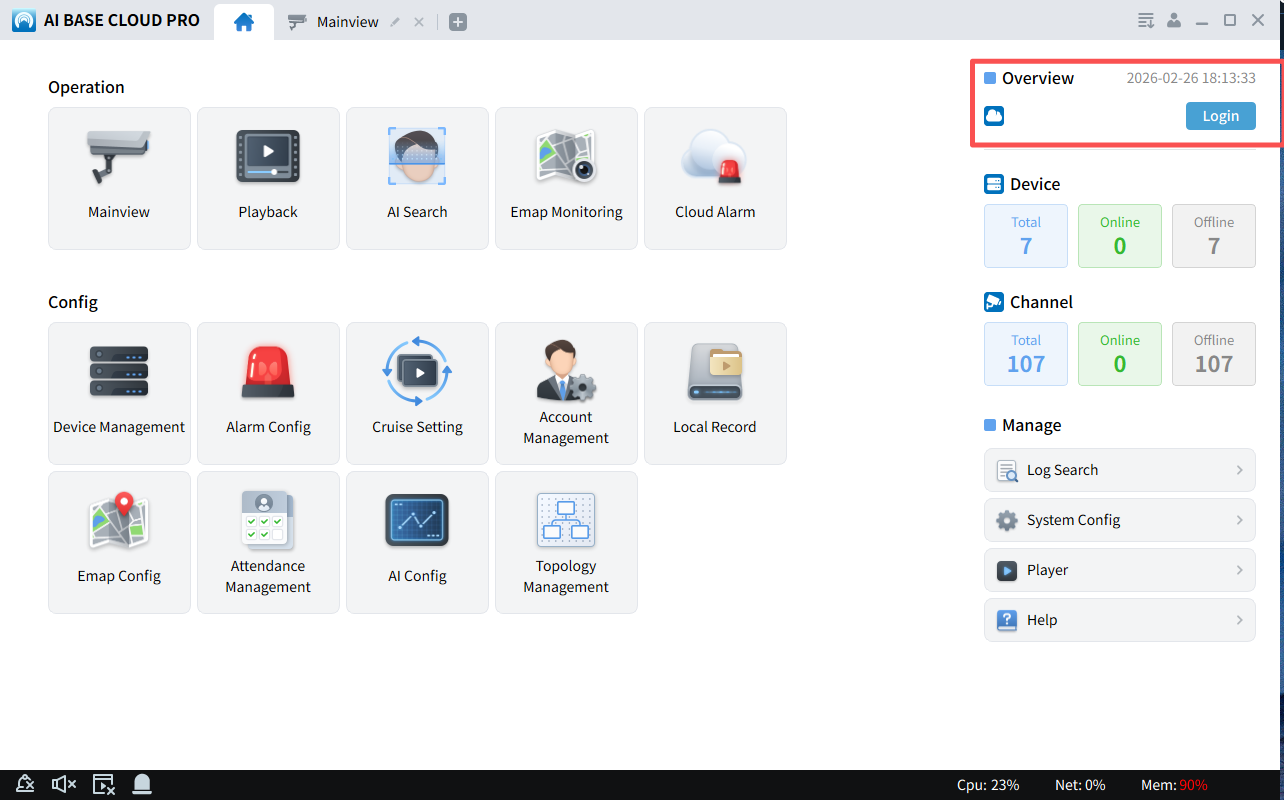
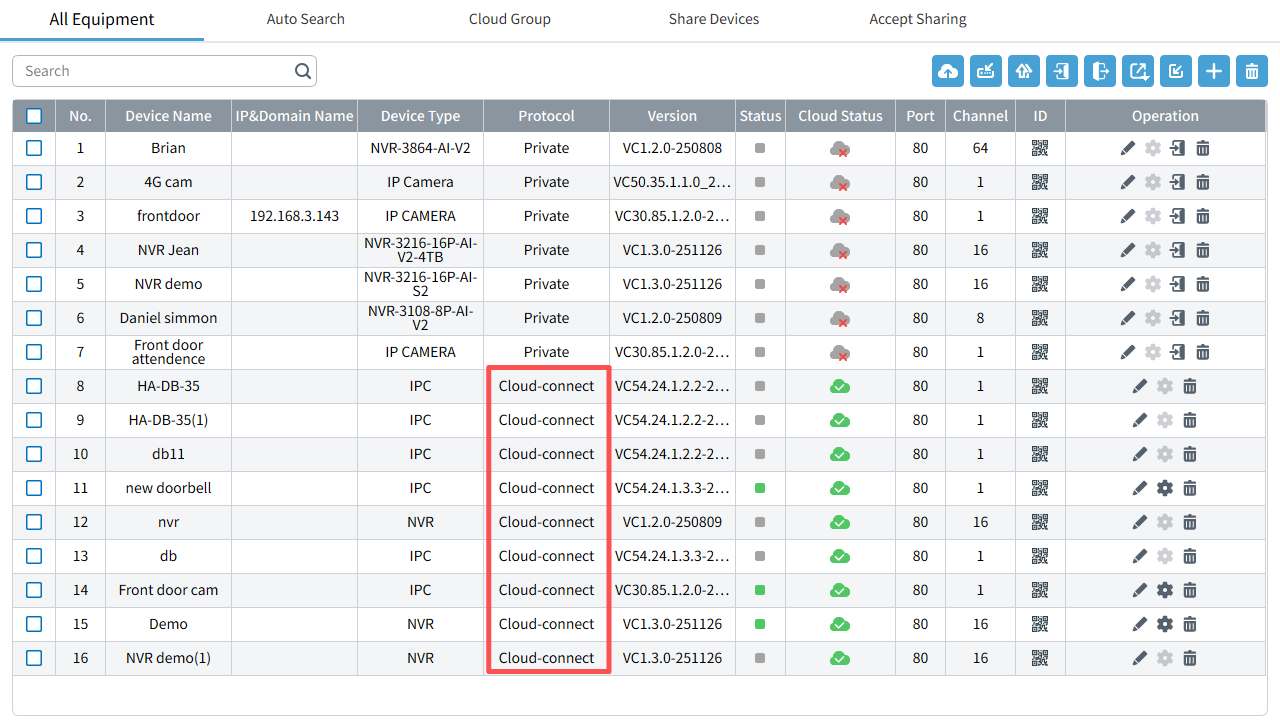
- After you login. you can have all the devices you already bind with your account. The account bind devices will show as cloud-connect devices.
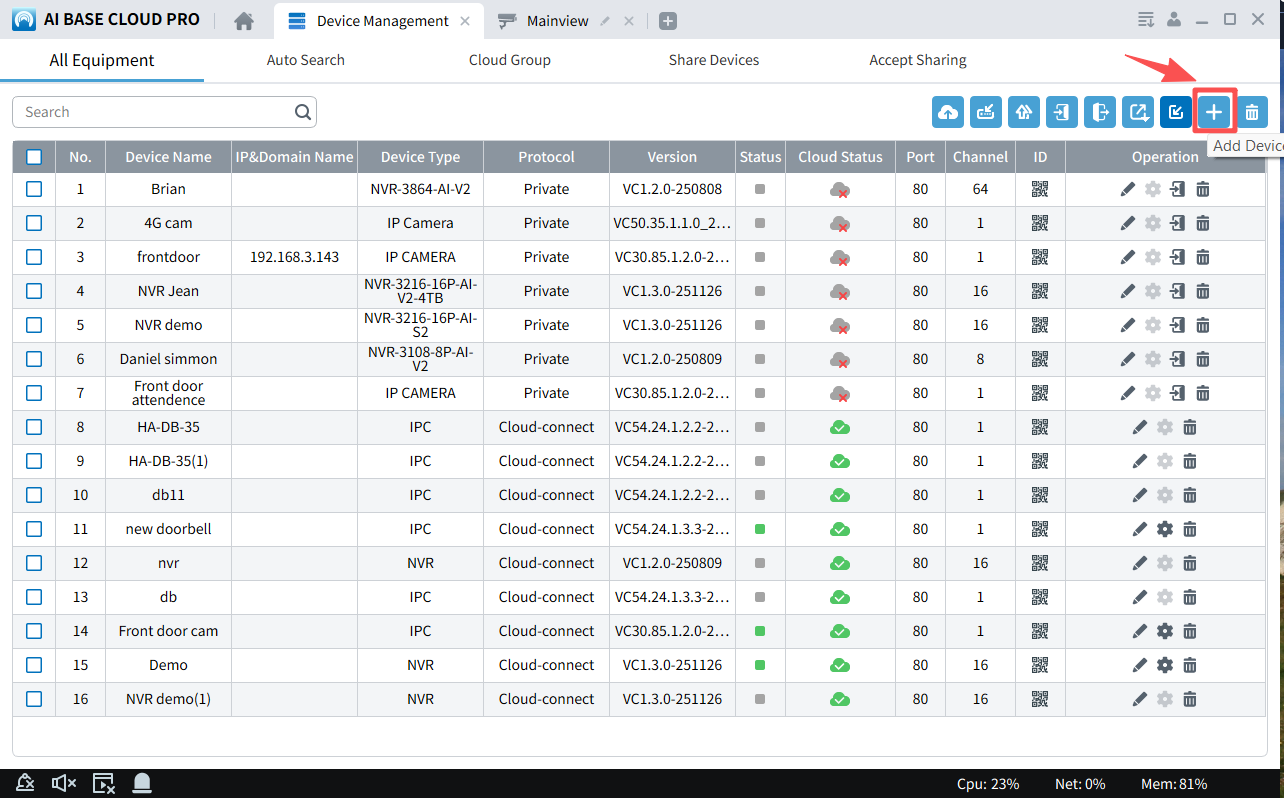
- You can also add device by using the P2P number. you can follow the following steps to add the device.
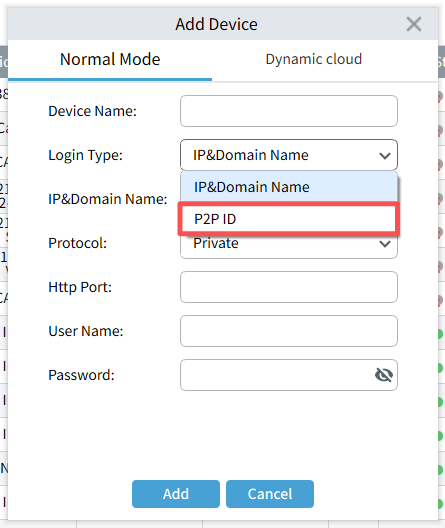
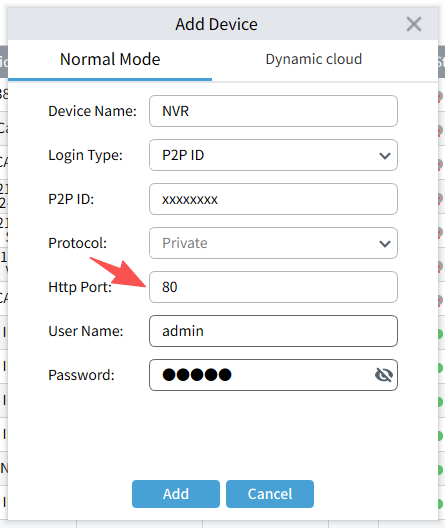
Live view
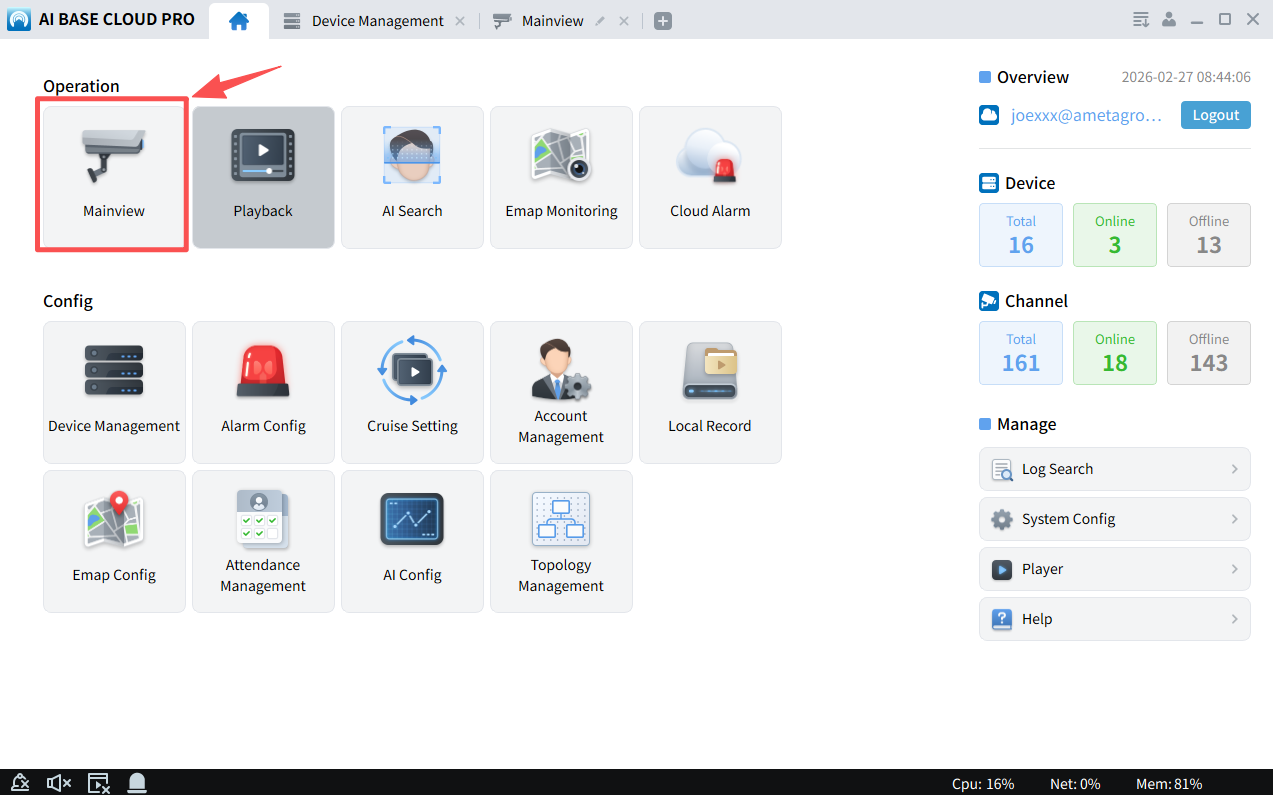
- Choose live view on the main menu
- On the live view , the account bind devices is under your account name, the local IP and P2P devices is under "root"
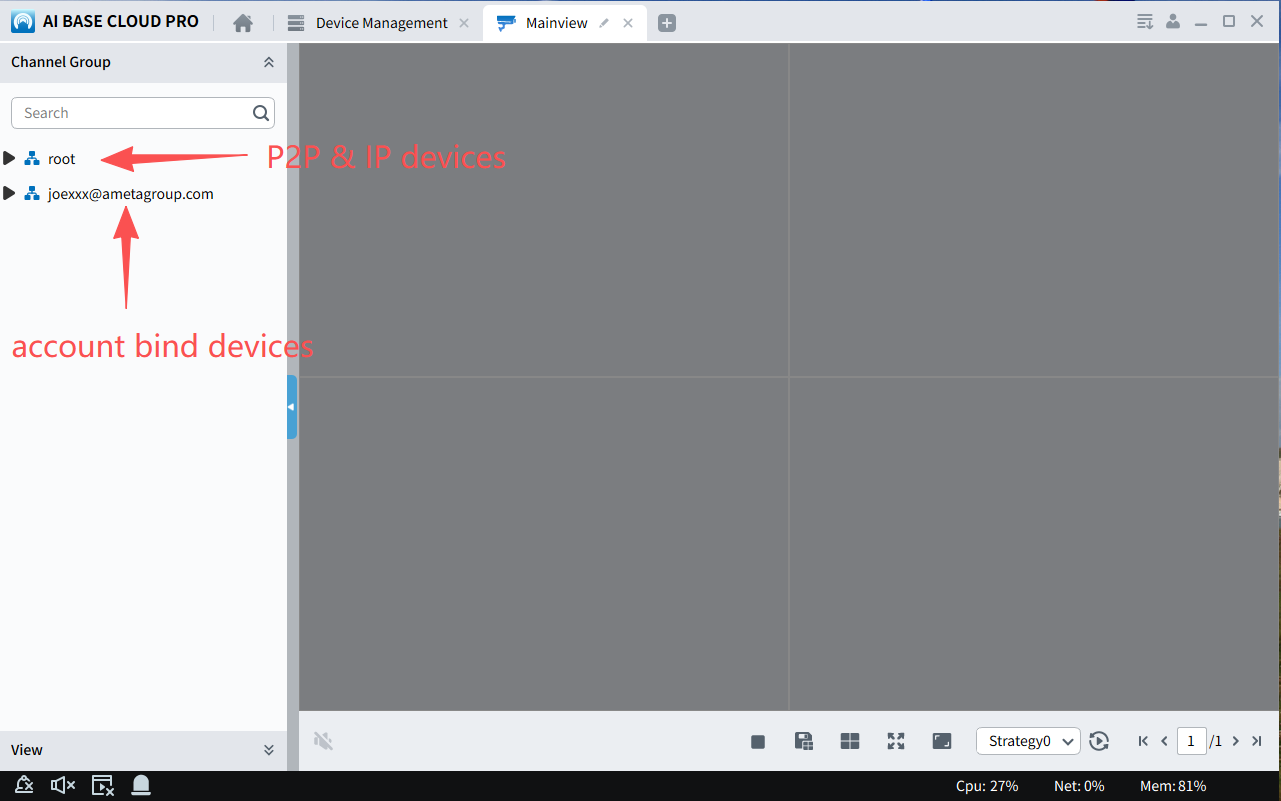
3.Click the devices tree and you will see all the devices, double click the device, ytou will see all the channel live view

Playback
- Choose Playback on the menu. select playback.
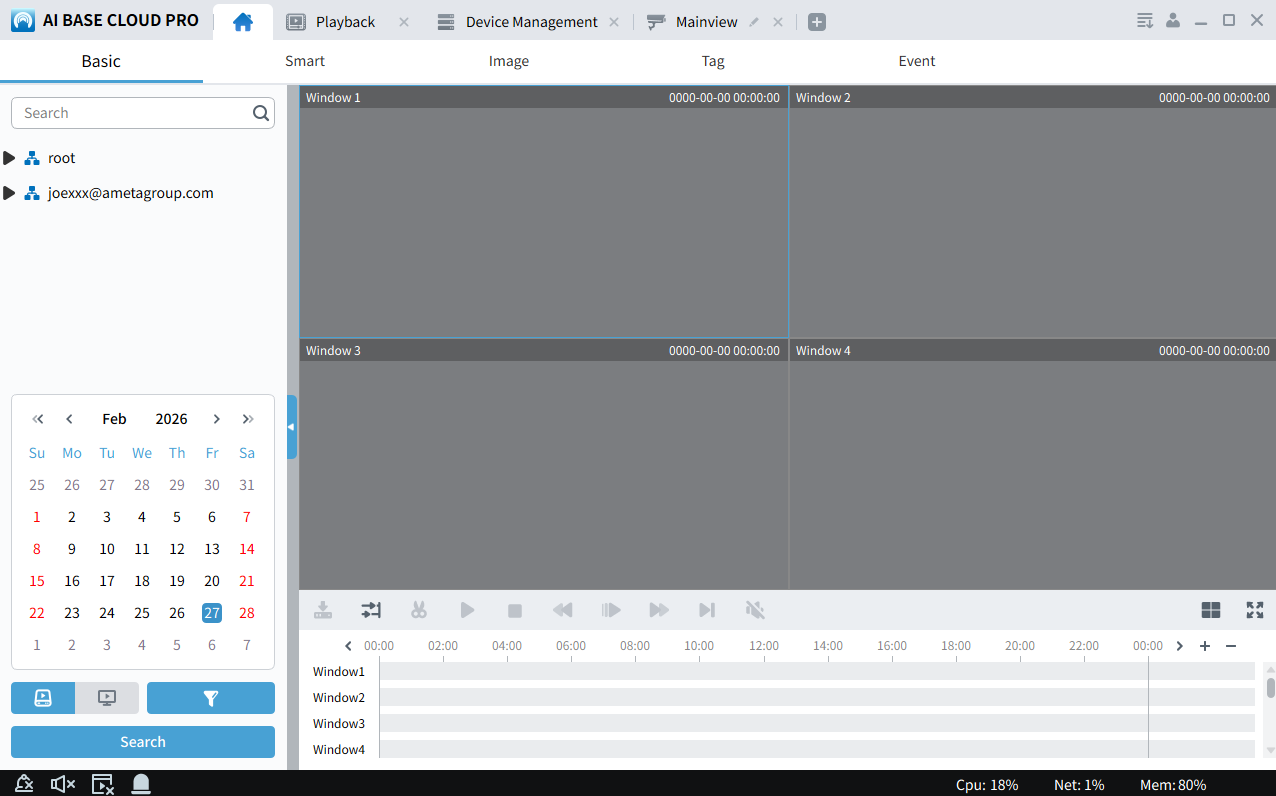
- On the left panel, choose device and channels want to playback.
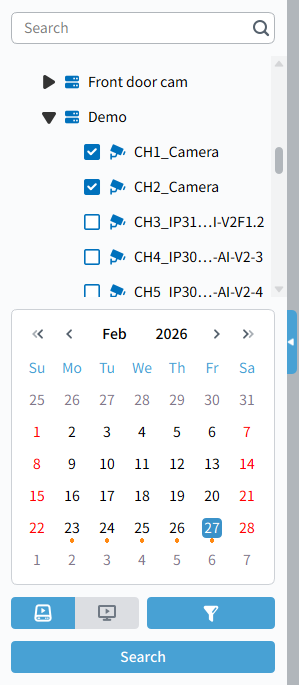
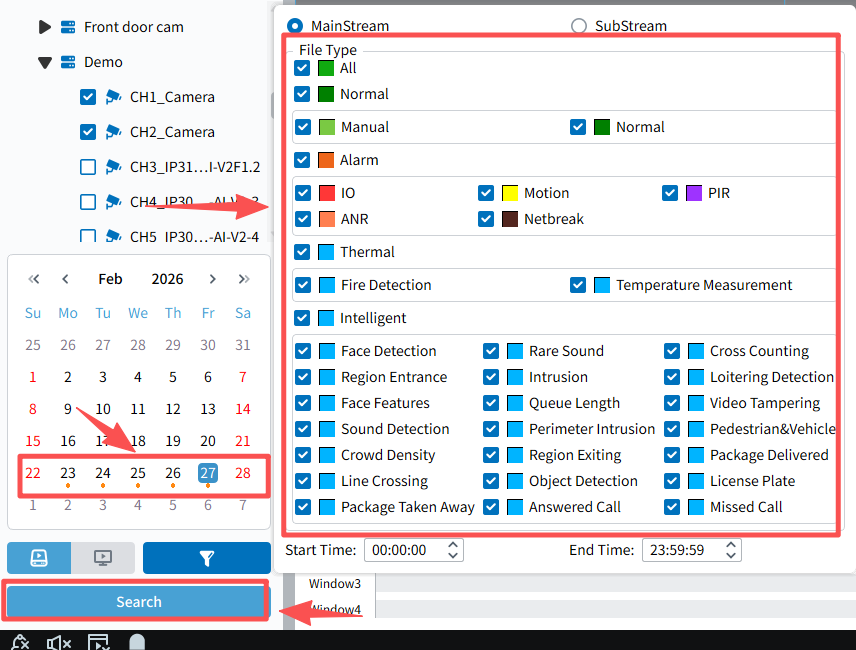
- Select date, filter the event, and then press search button.
Event search
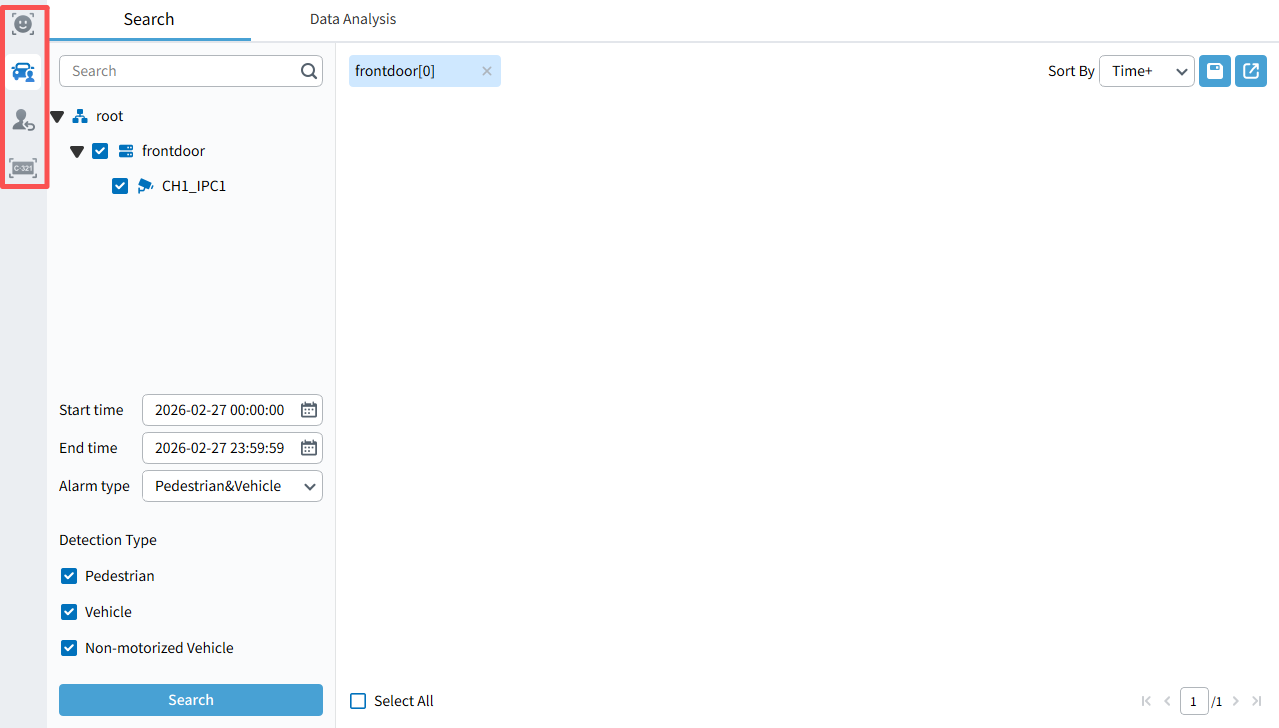
For P2P devices, you can use AI search to check all the event results.
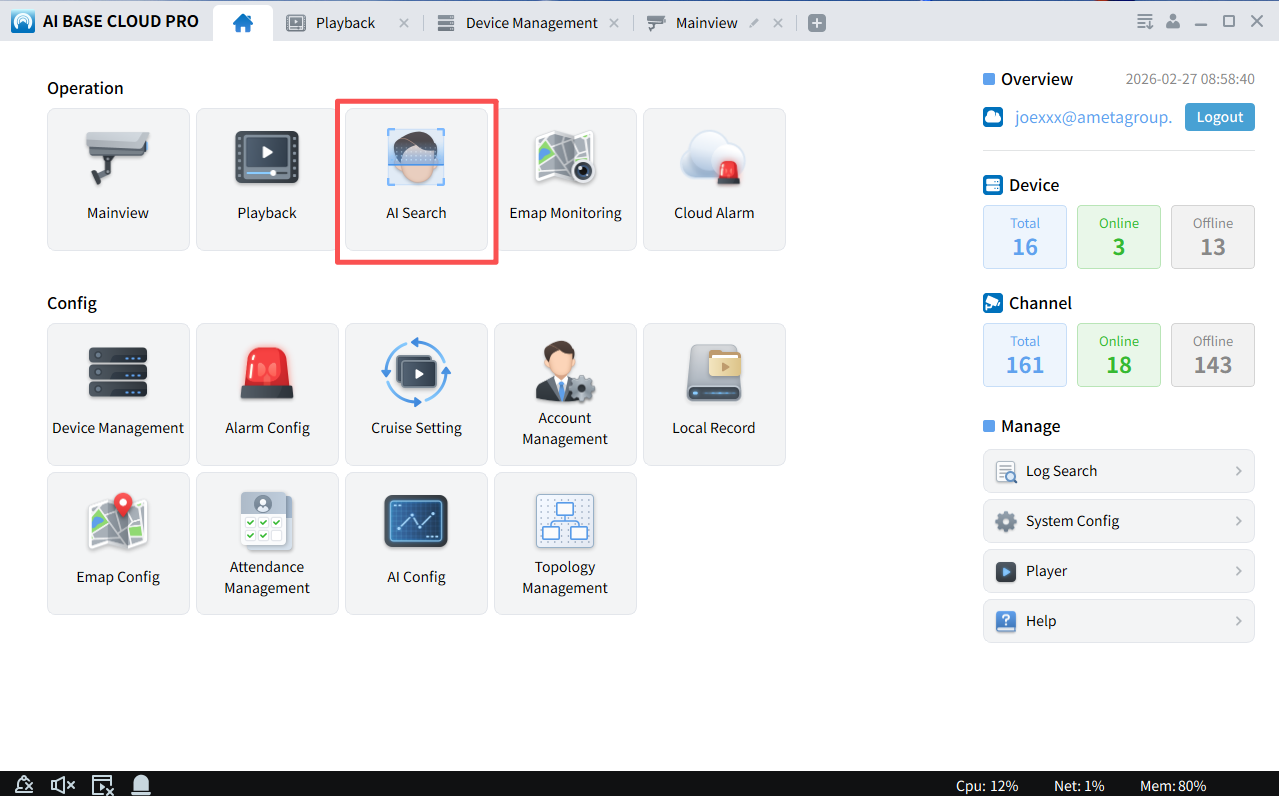
- You can select different types of event to search the devices
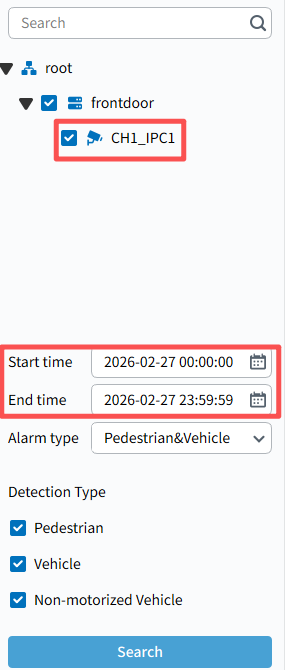
- select the channels, date and time
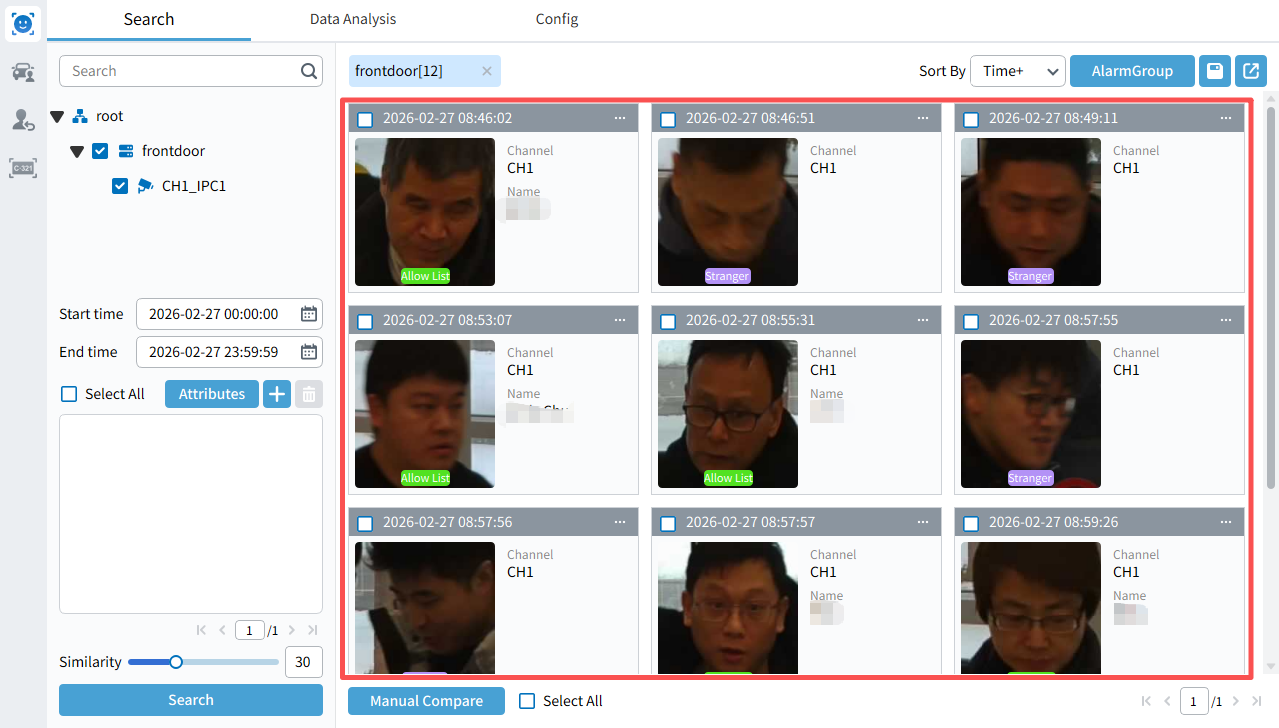
- The result will show on the right panel.
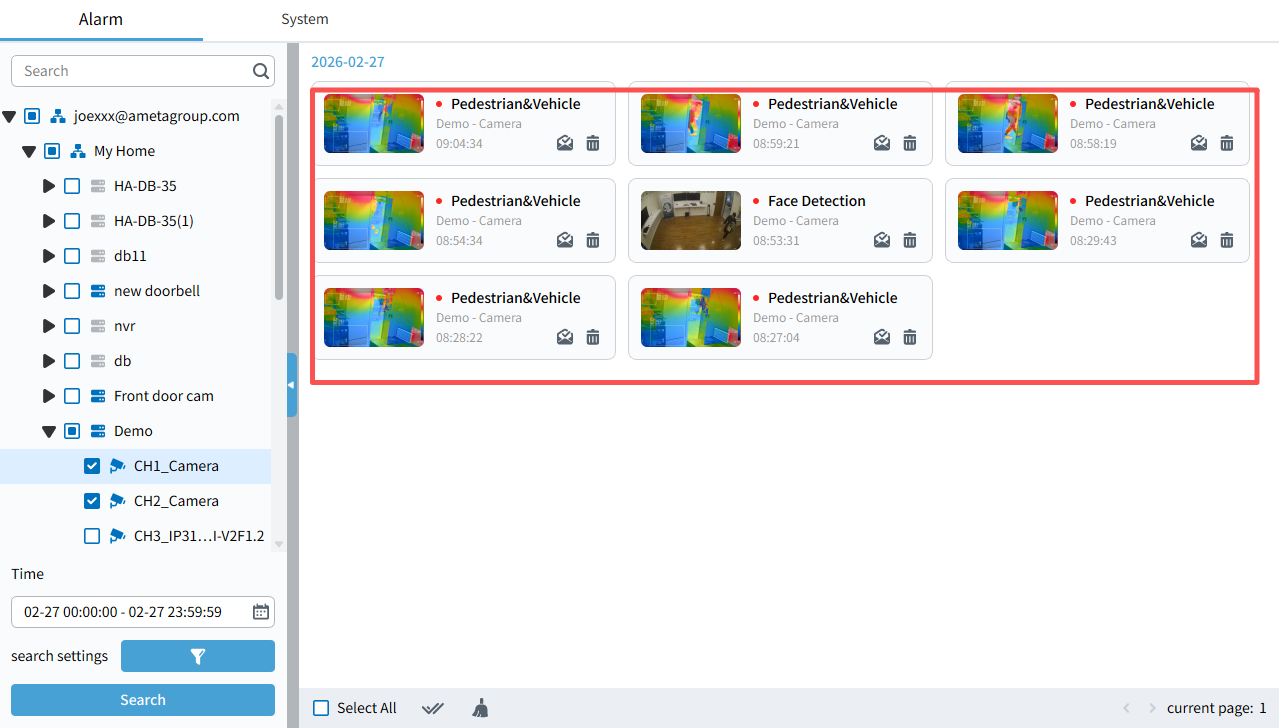
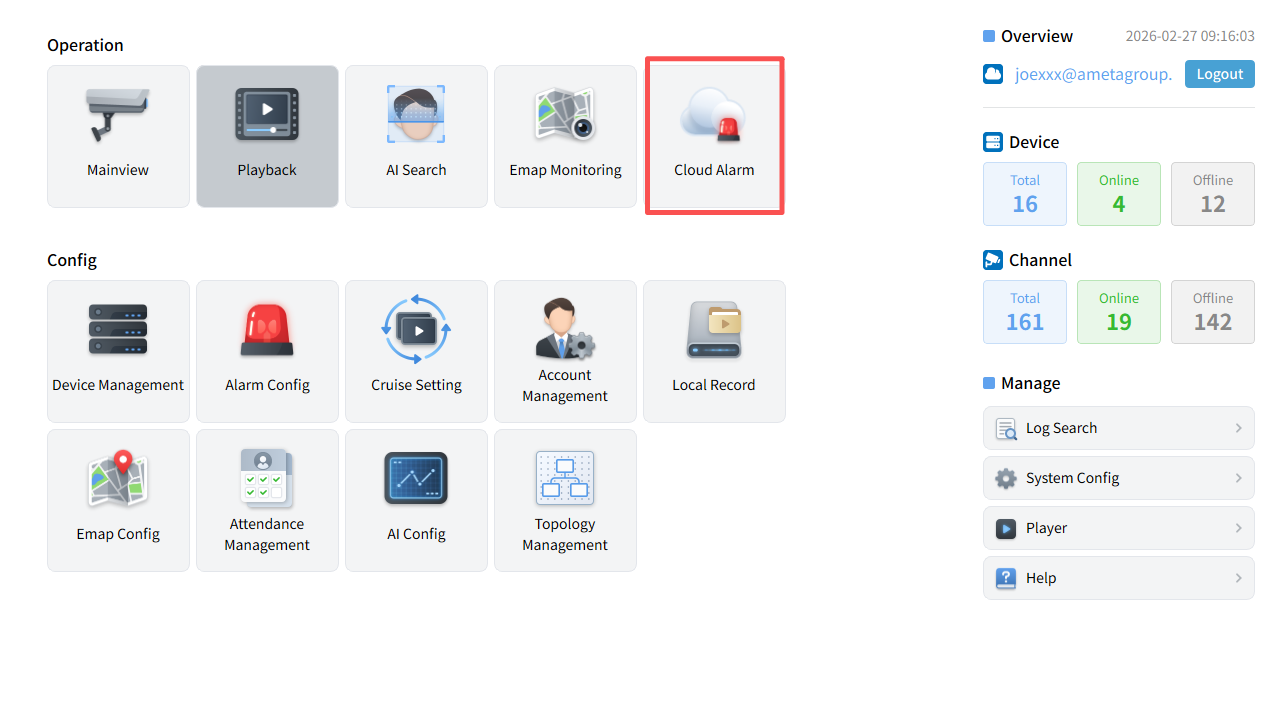
For the cloud-connect devices use. you need to choose cloud alarm
- select the devices, channels, event type, date and time, you will see all the event result on the right panel.
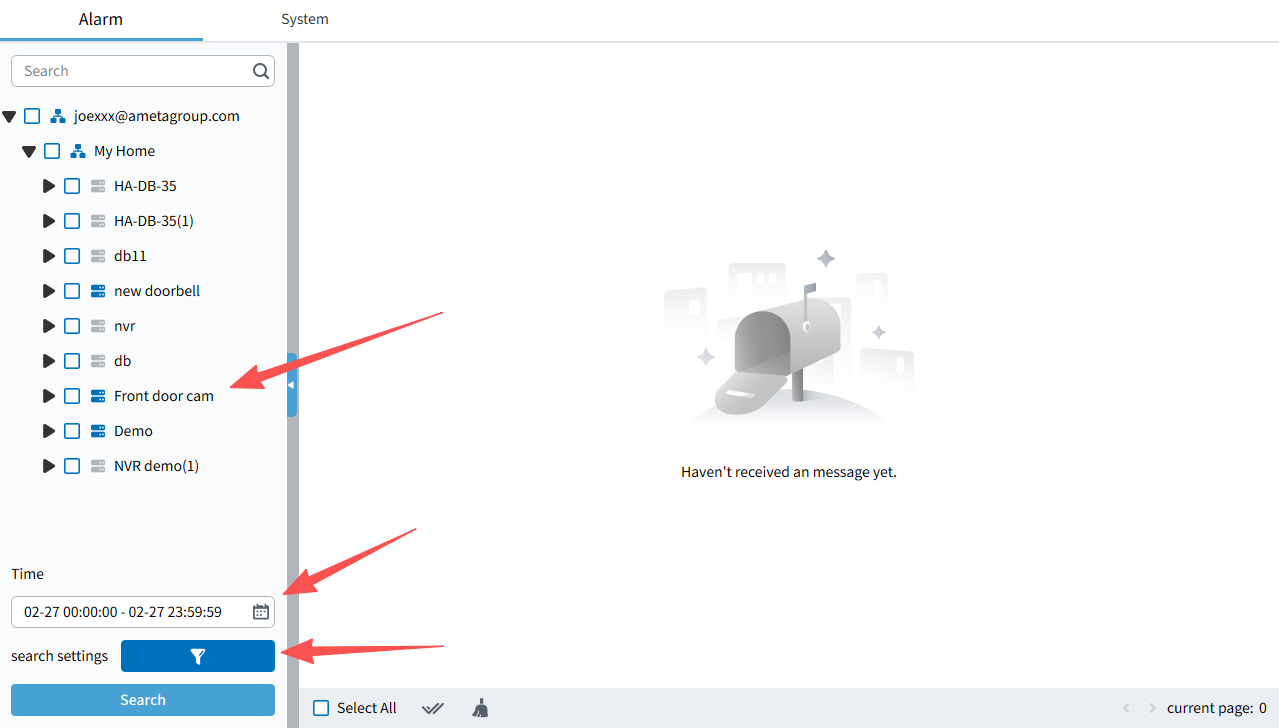
- the results will show on the right panel with a tag.