Introduction
This FAQ is intended to help resolve an issue where the Eyeonet recorder (NVR) becomes stuck on the boot or startup screen and cannot enter normal operation. This problem is commonly caused by firmware corruption or an interrupted system update.
By following the instructions below, you can perform a USB recovery to restore the recorder’s system firmware and bring the device back to normal working condition.
Instructions
- Download the correct firmware for your recorder. If you are not sure which firmware to use, you can find the model number on the label located on the bottom of the recorder.
Firmware Download Links
-
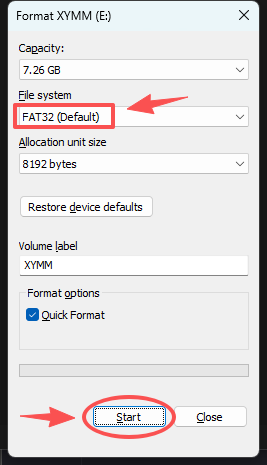
Format the USB flash drive and select FAT32 as the file system.
-
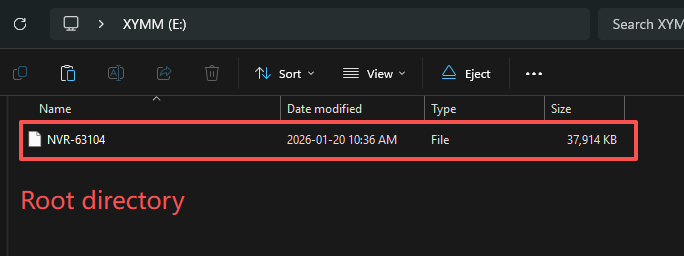
Copy the file to the root directory of the USB flash drive. Do not rename the file.
-
Power off the NVR completely.
-
Insert the USB flash drive into the USB port on the front of the NVR.
-
Power on the NVR and wait patiently. The process may take up to 30 minutes on some models.