- We need to export the device’s xml file using SADP (Download here)
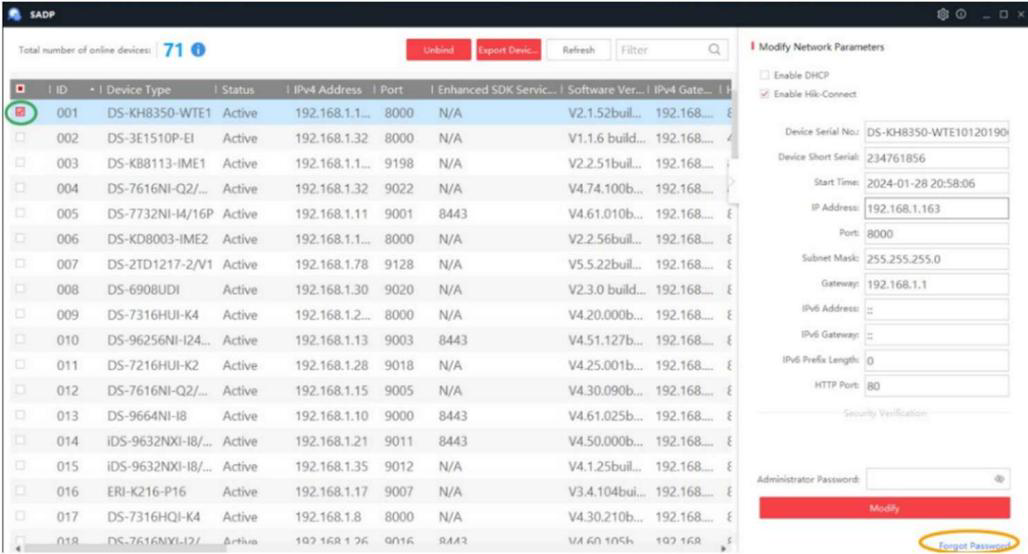
a. After downloading and opening SADP, all of the Hikvision devices that are on the same network that the computer is connected to will populate.
b. Click on the square on the left of the device (circled in green) and then click on “Forgot password” (circled in orange). This will bring up a new page.
c. Click on “Export device feature code file” (circled in orange)
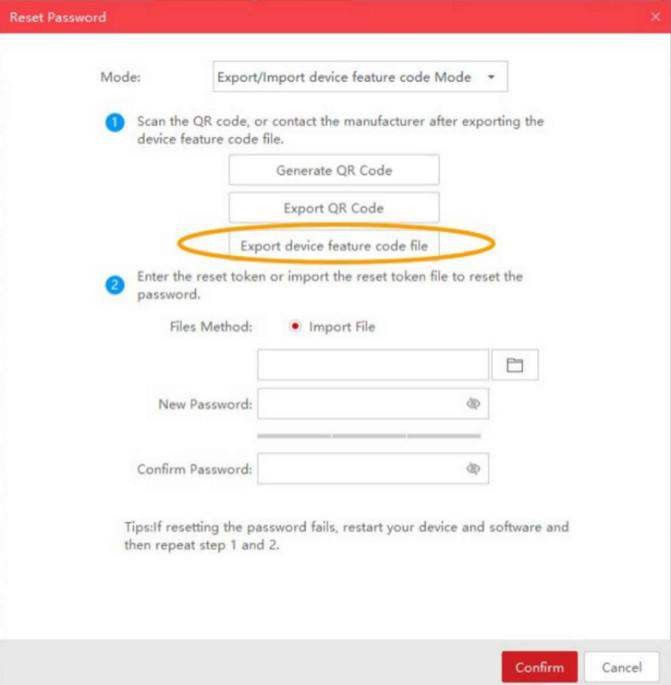
d. Choose a location to save the exported file.
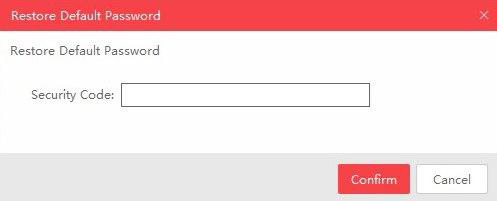
e. In the case that SADP does not give you the reset menu (as shown in step 1c), and instead shows the following menu asking for a security code, you will need to contact your region’s technical support line for assistance.
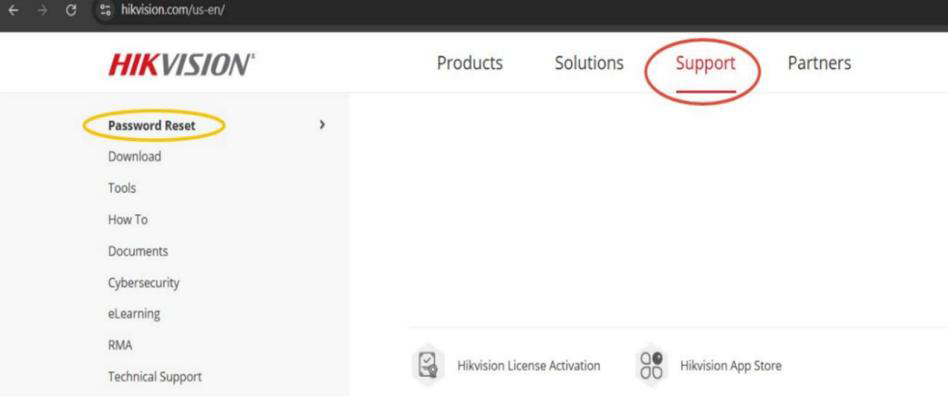
- Visit the password reset form by opening a web browser and going to www.hikvision.com/us-en/
a. Hover over “Support” (Red Circle) and click on “Password Reset” (Yellow Circle)
b. Fill out the form and attach the .xml file that was exported from SADP (in step 1c)
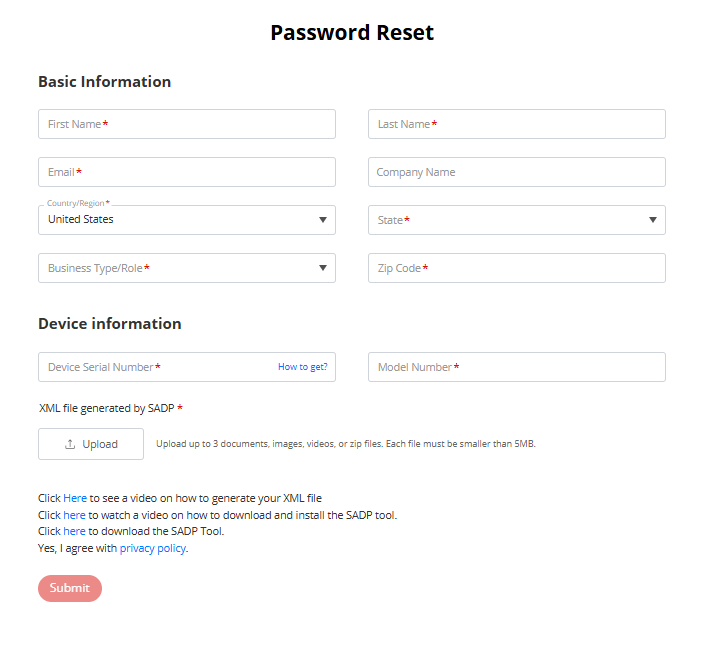
c. Check your email for a response from the form. A .xml file will be attached to the email. You will need to save this file to your computer so that it can be used for step 3. - Go back to SADP, and return to the forgot password reset menu from step 1c.
a. Select “Import File” (circled in green) option (may be on “Input Key” by default)
b. Click the file icon (circled in orange) to open a file explorer and select the file you saved from the email response
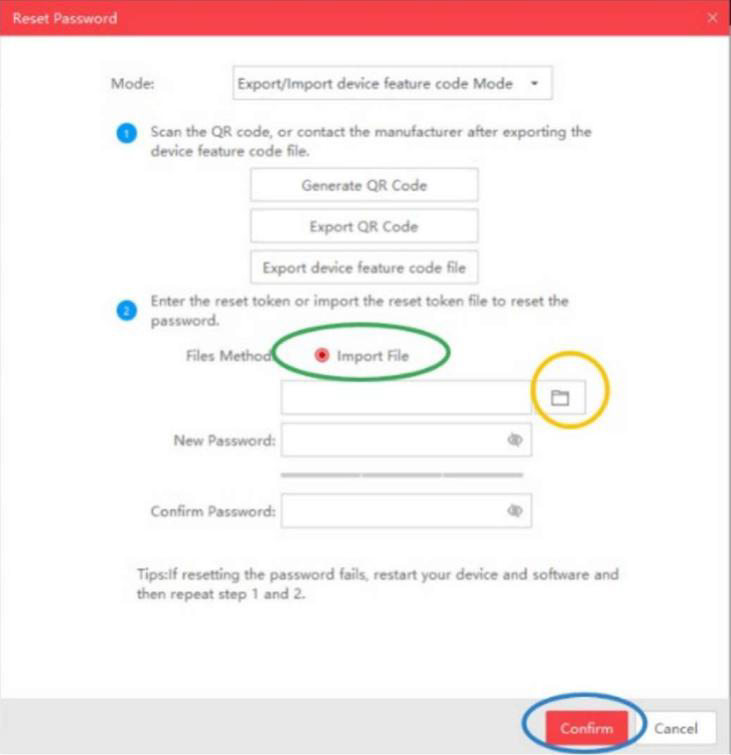
c. Type in a new password and confirm
d. Click Confirm (circled in blue)
Password Reset Steps and Procedures for Hikvision Products
- Updated on Jan 16, 2026
- Published on Jan 14, 2026
- 1 minute(s) read