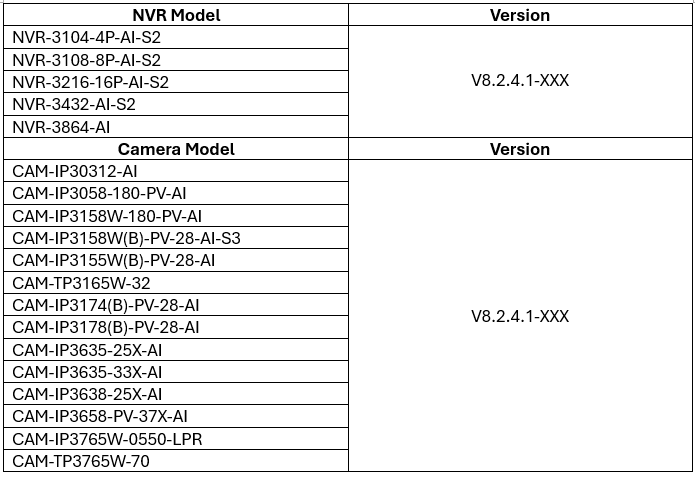
Before upgrading, please double-check the compatibility list to ensure that all devices, including cameras, are supported. After upgrading the NVR to the cloud version, you will still need to obtain a Cloud ID for the device to use the new AiColor Pro app.
Steps If you want to use new feature on new app(Aicolor Pro):
- Prepare a computer that is connected to the same network as the NVR.
- Contact our technical support team (click here to book an appointment)to burn a cloud ID.
Compatible List:
Upgrade the NVR via the Web Portal
Please refer to this link to find your NVR:NVR-S2
- Download the correct version of the firmware for your NVR.
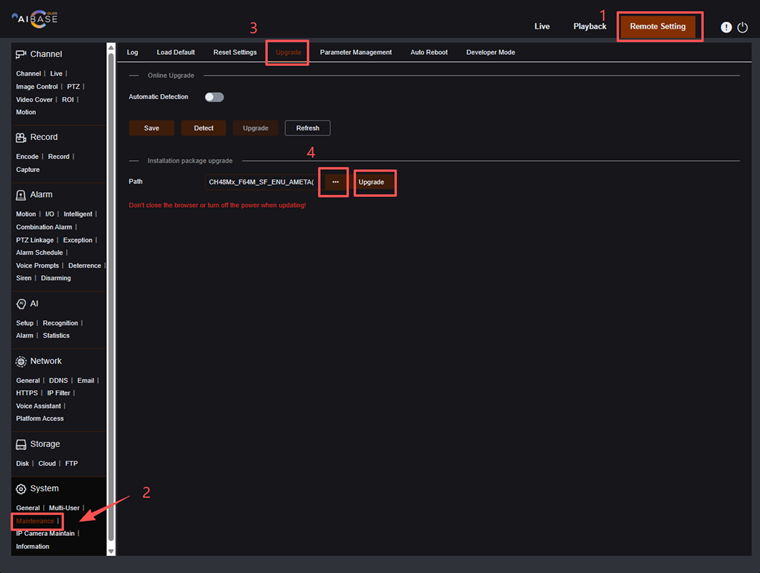
- Click Remote Setting in the top-right corner. Under the System section, select Maintenance, then click Upgrade. Choose the firmware file and click the Upgrade button.
Upgrading the Camera via the Cloud-Version NVR Webpage
Please refer to this link to find your IPC:IPC
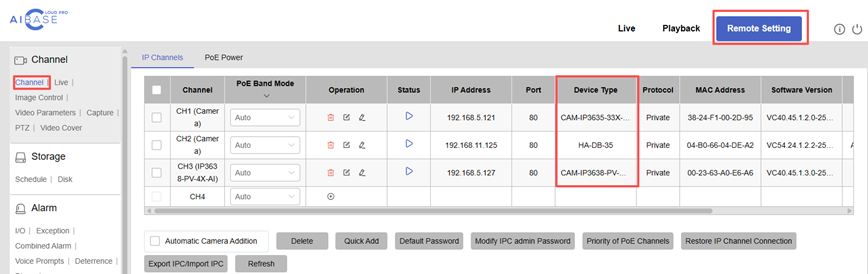
- We recommend upgrading the NVR first before upgrading the cameras. On the cloud-version NVR web page, go to the Channel List to double-check the camera models, then download the correct firmware version.
- Click Remote Setting in the top-right corner. Under the System section, select IP Camera Maintenance, then click Upgrade. Choose the** firmware file**, select the corresponding cameras from the list, and click the IPC Upgrade button.
If both a conversion version and an official version are included in the file folder, please upgrade to the conversion version first, and then upgrade to the official version.

Upgrading the Camera via the web portal
- Double-check the camera model make sure it is in the compatible list, then download the correct firmware version.
- Click Remote Setting in the top-right corner. Under the System section, select Maintenance, then click Upgrade. Choose the firmware file and click the Upgrade button.
If both a conversion version and an official version are included in the file folder, please upgrade to the conversion version first, and then upgrade to the official version.
